
298 lines
9.4 KiB
Markdown
Executable File
298 lines
9.4 KiB
Markdown
Executable File
---
|
|
comments: true
|
|
description: Configure your Ultralytics Platform profile, preferences, and data settings with GDPR-compliant data export and deletion options.
|
|
keywords: Ultralytics Platform, settings, profile, preferences, GDPR, data export, privacy
|
|
---
|
|
|
|
# Settings
|
|
|
|
[Ultralytics Platform](https://platform.ultralytics.com) settings allow you to configure your profile, social links, workspace preferences, and manage your data with GDPR-compliant export and deletion options.
|
|
|
|
Settings is organized into five tabs: `Profile`, `Plans`, `Billing`, `Teams`, and `Trash`.
|
|
|
|
## Profile Tab
|
|
|
|
The `Profile` tab contains your profile information, social links, API keys, data region, and account management options.
|
|
|
|
### Profile Information
|
|
|
|
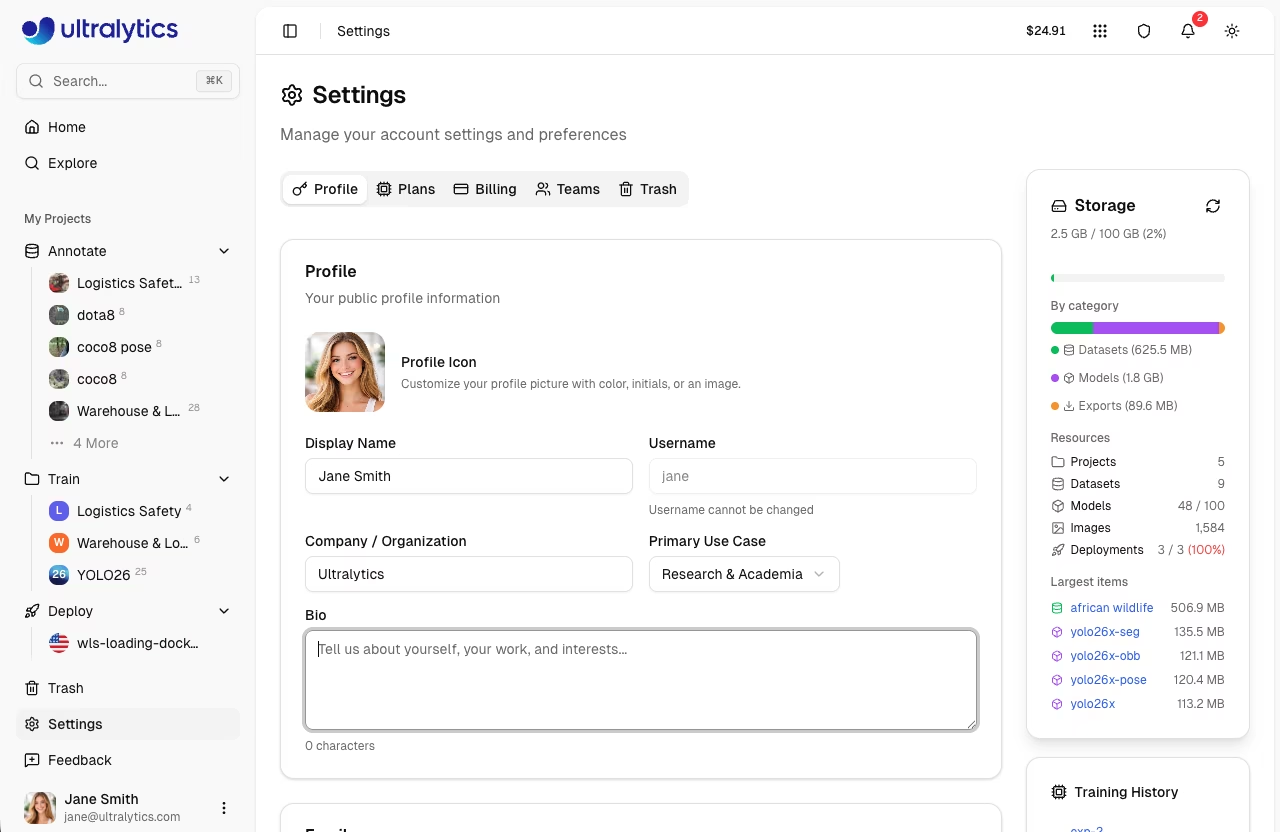
Update your profile information:
|
|
|
|
|
|
|
|
| Field | Description |
|
|
| ---------------- | ----------------------------------------- |
|
|
| **Display Name** | Your public name |
|
|
| **Username** | Unique identifier (set at signup) |
|
|
| **Company** | Company or organization name |
|
|
| **Use Case** | Primary application (select from list) |
|
|
| **Bio** | Short description (minimum 10 characters) |
|
|
| **Profile Icon** | Avatar with color, initials, or image |
|
|
|
|
#### Username Rules
|
|
|
|
- 4-32 characters
|
|
- Lowercase letters, numbers, hyphens
|
|
- Cannot start/end with hyphen
|
|
- Must be unique
|
|
|
|
!!! note "Username is Permanent"
|
|
|
|
Your username is set during onboarding and cannot be changed. It appears in all your public URLs (e.g., `platform.ultralytics.com/username`).
|
|
|
|
#### Use Case Options
|
|
|
|
| Use Case | Description |
|
|
| ----------------------- | -------------------------- |
|
|
| Manufacturing & QC | Quality control workflows |
|
|
| Retail & Inventory | Retail and inventory tasks |
|
|
| Security & Surveillance | Security monitoring |
|
|
| Healthcare & Medical | Medical imaging |
|
|
| Automotive & Robotics | Self-driving and robotics |
|
|
| Agriculture | Agricultural monitoring |
|
|
| Research & Academia | Academic research |
|
|
| Personal Project | Personal or hobby projects |
|
|
|
|
### Edit Profile
|
|
|
|
1. Go to **Settings > Profile**
|
|
2. Update fields (display name, company, use case, bio)
|
|
3. Click **Save Changes**
|
|
|
|
### Social Links
|
|
|
|
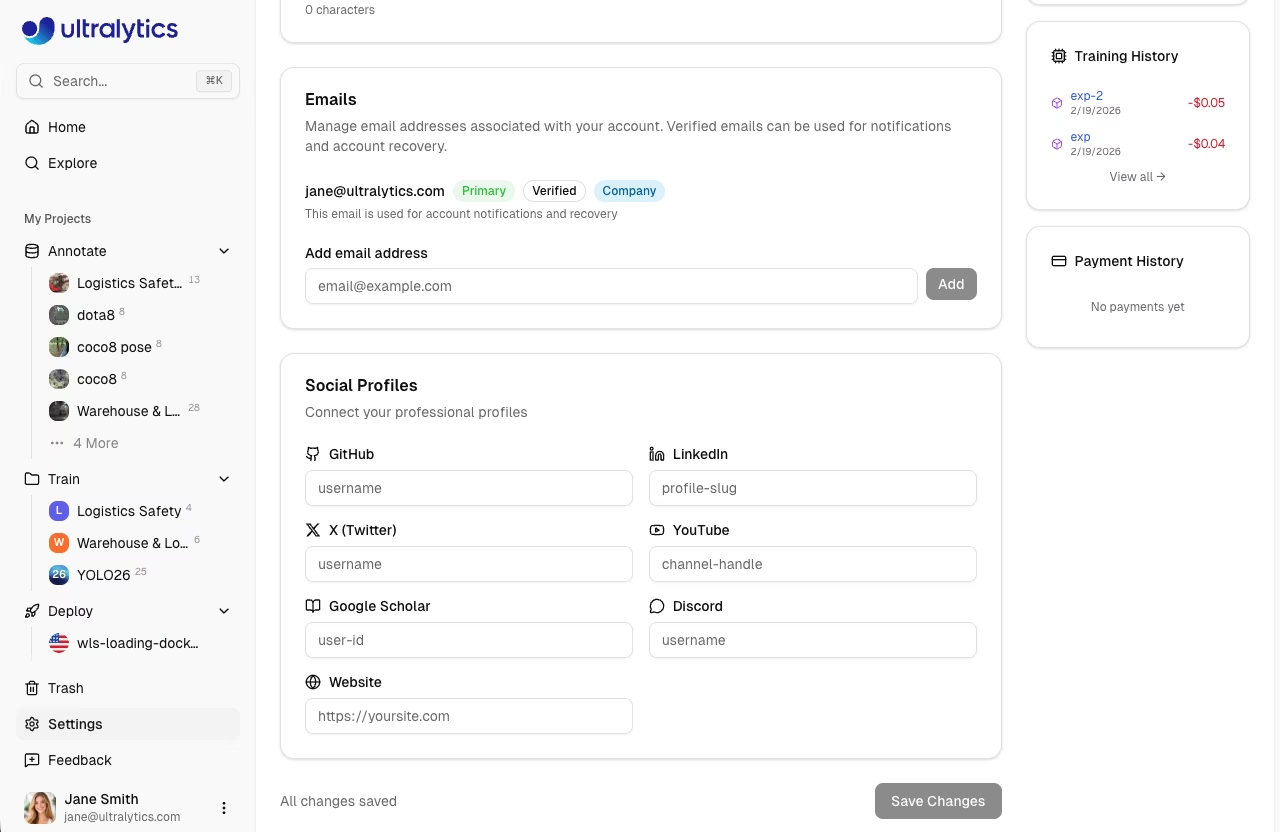
Connect your professional profiles:
|
|
|
|
|
|
|
|
| Platform | Format |
|
|
| ------------------ | -------------------- |
|
|
| **GitHub** | username |
|
|
| **LinkedIn** | profile-slug |
|
|
| **X (Twitter)** | username |
|
|
| **YouTube** | channel-handle |
|
|
| **Bilibili** | user-id |
|
|
| **Google Scholar** | user-id |
|
|
| **Discord** | username |
|
|
| **WeChat** | username |
|
|
| **Website** | https://yoursite.com |
|
|
|
|
Social links appear on your public profile page.
|
|
|
|
### Emails
|
|
|
|
Manage email addresses linked to your account in the `Profile` tab:
|
|
|
|
<!-- Screenshot: settings-profile-tab-emails-section.avif -->
|
|
|
|
| Action | Description |
|
|
| ------------------ | ---------------------------------------------- |
|
|
| **Add Email** | Add a new email address to your account |
|
|
| **Remove** | Remove a non-primary email address |
|
|
| **Verify** | Send a verification email to confirm ownership |
|
|
| **Set as Primary** | Set a verified email as your primary address |
|
|
|
|
!!! note "Primary Email"
|
|
|
|
Your primary email is used for notifications and account recovery. Only verified emails can be set as primary.
|
|
|
|
### API Keys
|
|
|
|
API keys are managed directly on the `Profile` tab. See [API Keys](api-keys.md) for full documentation.
|
|
|
|
### Data Region
|
|
|
|
View your data region on the `Profile` tab:
|
|
|
|
| Region | Location | Best For |
|
|
| ------ | ------------- | ------------------------------- |
|
|
| **US** | United States | Americas users |
|
|
| **EU** | Europe | European users, GDPR compliance |
|
|
| **AP** | Asia Pacific | Asia-Pacific users |
|
|
|
|
!!! note "Region is Permanent"
|
|
|
|
Data region is selected during signup and cannot be changed. All your data stays in this region.
|
|
|
|
### Storage Usage
|
|
|
|
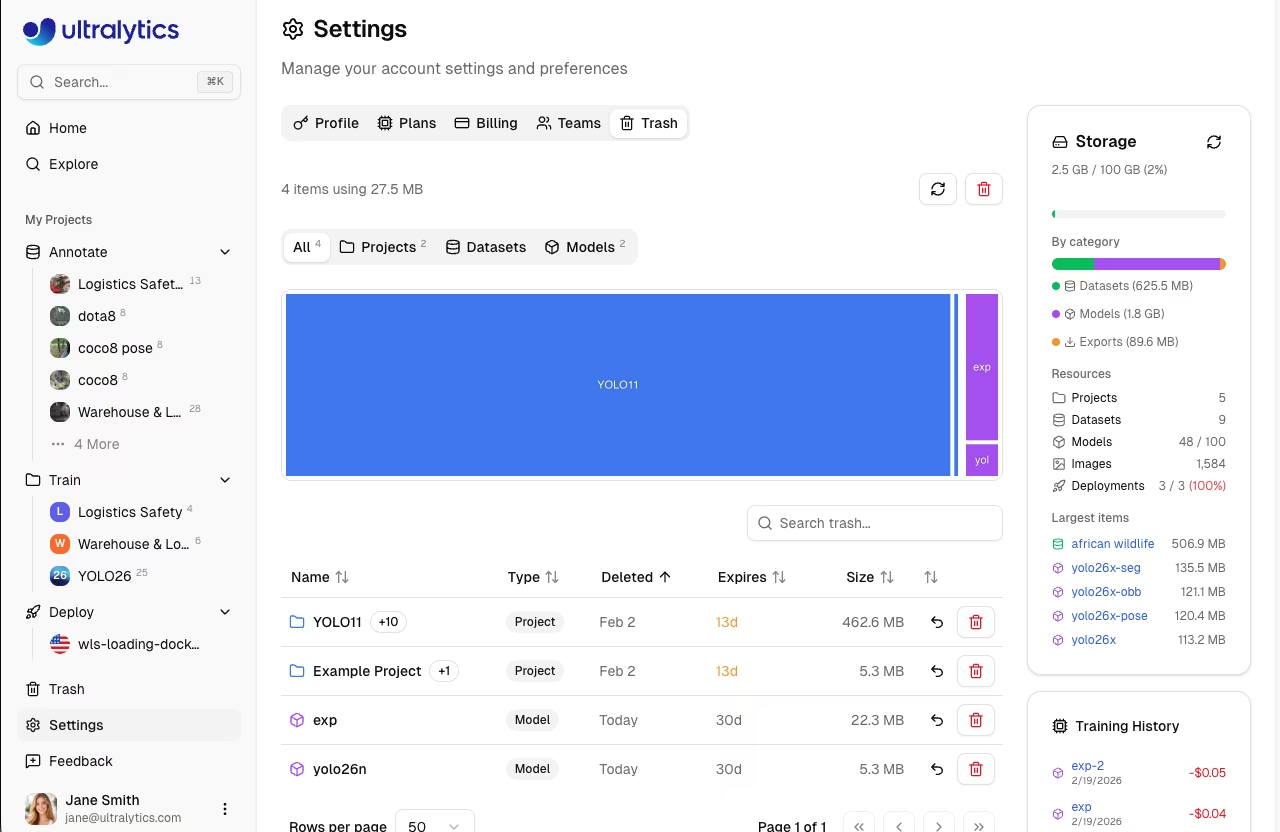
Monitor your storage consumption on the `Profile` tab:
|
|
|
|
|
|
|
|
| Type | Description |
|
|
| ------------ | ----------------------- |
|
|
| **Datasets** | Image and label storage |
|
|
| **Models** | Checkpoint storage |
|
|
| **Exports** | Exported model formats |
|
|
|
|
#### Storage Limits
|
|
|
|
| Plan | Limit |
|
|
| ---------- | --------- |
|
|
| Free | 100 GB |
|
|
| Pro | 500 GB |
|
|
| Enterprise | Unlimited |
|
|
|
|
#### Reduce Storage
|
|
|
|
To free up storage:
|
|
|
|
1. Delete unused datasets
|
|
2. Remove old model checkpoints
|
|
3. Delete exported formats
|
|
4. Empty trash ([`Settings > Trash`](trash.md))
|
|
|
|
### Security
|
|
|
|
The `Profile` tab includes a Security card at the bottom:
|
|
|
|
- **Two-Factor Authentication**: Coming soon. Currently handled by your OAuth provider (Google, GitHub)
|
|
- **Connected Accounts**: Shows your linked OAuth provider (e.g., Google)
|
|
|
|
### GDPR Compliance
|
|
|
|
Ultralytics Platform supports GDPR rights:
|
|
|
|
#### Data Export
|
|
|
|
Download all your data:
|
|
|
|
1. Go to **Settings > Profile**
|
|
2. Scroll to the bottom section
|
|
3. Click **Export Data**
|
|
4. Receive download link via email
|
|
|
|
Export includes:
|
|
|
|
- Profile information
|
|
- Dataset metadata
|
|
- Model metadata
|
|
- Training history
|
|
- API key metadata (not secrets)
|
|
|
|
#### Account Deletion
|
|
|
|
Permanently delete your account:
|
|
|
|
1. Go to **Settings > Profile**
|
|
2. Scroll to the bottom section
|
|
3. Click **Delete Account**
|
|
4. Confirm deletion
|
|
|
|
!!! warning "Irreversible Action"
|
|
|
|
Account deletion is permanent. All data is removed within 30 days per GDPR requirements.
|
|
|
|
##### What's Deleted
|
|
|
|
- All projects and trained models
|
|
- All datasets and images
|
|
- All API keys and credentials
|
|
- All activity history
|
|
- Credit balance
|
|
|
|
##### What's Retained
|
|
|
|
- Anonymized analytics
|
|
- Server logs (90 days)
|
|
- Legal compliance records
|
|
|
|
## Plans Tab
|
|
|
|
Compare available plans. See [Billing](billing.md) for detailed plan information and pricing.
|
|
|
|
## Billing Tab
|
|
|
|
Manage credits, payment methods, and view transaction history. See [Billing](billing.md) for full documentation.
|
|
|
|
## Teams Tab
|
|
|
|
Manage workspace members, roles, and invitations. Teams are available on [Pro and Enterprise plans](billing.md#plans).
|
|
|
|
### Team Overview
|
|
|
|
The Teams tab displays:
|
|
|
|
- Workspace name and avatar
|
|
- Seat usage summary (used / available)
|
|
- Member list with roles
|
|
- Pending invitations
|
|
|
|
### Member Roles
|
|
|
|
| Role | Permissions |
|
|
| ---------- | ------------------------------------------------------ |
|
|
| **Owner** | Full control, transfer ownership, delete workspace |
|
|
| **Admin** | Manage members, billing, settings, content |
|
|
| **Editor** | Create and manage projects, datasets, models, API keys |
|
|
| **Viewer** | Read-only access to workspace resources |
|
|
|
|
!!! note "Role Availability"
|
|
|
|
Owner, Admin, Editor, and Viewer roles are available on all team plans (Pro and Enterprise).
|
|
|
|
### Invite Members
|
|
|
|
1. Go to **Settings > Teams**
|
|
2. Click **Invite**
|
|
3. Enter email address
|
|
4. Select role
|
|
5. Send invitation
|
|
|
|
The invitee receives an email and can accept the invitation to join the workspace. Invitations expire after 7 days. Inviting members requires the Admin role or higher.
|
|
|
|
### Manage Members
|
|
|
|
Owners and admins can manage the team:
|
|
|
|
- **Change roles**: Click the role dropdown next to a member (only the owner can assign/remove the admin role)
|
|
- **Remove members**: Click the menu and select **Remove**
|
|
- **Cancel invites**: Cancel pending invitations that haven't been accepted
|
|
- **Resend invites**: Resend invitation emails
|
|
- **Transfer ownership**: Transfer workspace ownership to another member (Owner only)
|
|
|
|
## Trash Tab
|
|
|
|
Manage deleted items. See [Trash](trash.md) for full documentation.
|
|
|
|
## FAQ
|
|
|
|
### How do I change my email?
|
|
|
|
Manage your email addresses directly on the platform:
|
|
|
|
1. Go to **Settings > Profile**
|
|
2. Scroll to the **Emails** section
|
|
3. Add a new email, verify it, and set it as primary
|
|
|
|
### Can I have multiple accounts?
|
|
|
|
You can create accounts in different regions, but:
|
|
|
|
- Each needs a unique email
|
|
- Data doesn't transfer between accounts
|
|
- Billing is separate
|
|
|
|
### How do I change my password?
|
|
|
|
If you signed up with email and password, use the password reset flow on the sign-in page. If you signed up with an OAuth provider, manage your password through that provider:
|
|
|
|
- **Google**: accounts.google.com
|
|
- **GitHub**: github.com/settings/security
|
|
|
|
### Is two-factor authentication available?
|
|
|
|
2FA is handled by your OAuth provider. Enable 2FA in:
|
|
|
|
- Google Account settings
|
|
- GitHub Security settings
|
|
|
|
### How long until deleted data is removed?
|
|
|
|
| Type | Timeline |
|
|
| -------------------- | ------------- |
|
|
| **Trash items** | 30 days |
|
|
| **Account deletion** | Up to 30 days |
|
|
| **Backups** | 90 days |
|