
9.4 KiB
Executable File
comments, description, keywords
| comments | description | keywords |
|---|---|---|
| true | Configure your Ultralytics Platform profile, preferences, and data settings with GDPR-compliant data export and deletion options. | Ultralytics Platform, settings, profile, preferences, GDPR, data export, privacy |
Settings
Ultralytics Platform settings allow you to configure your profile, social links, workspace preferences, and manage your data with GDPR-compliant export and deletion options.
Settings is organized into five tabs: Profile, Plans, Billing, Teams, and Trash.
Profile Tab
The Profile tab contains your profile information, social links, API keys, data region, and account management options.
Profile Information
Update your profile information:
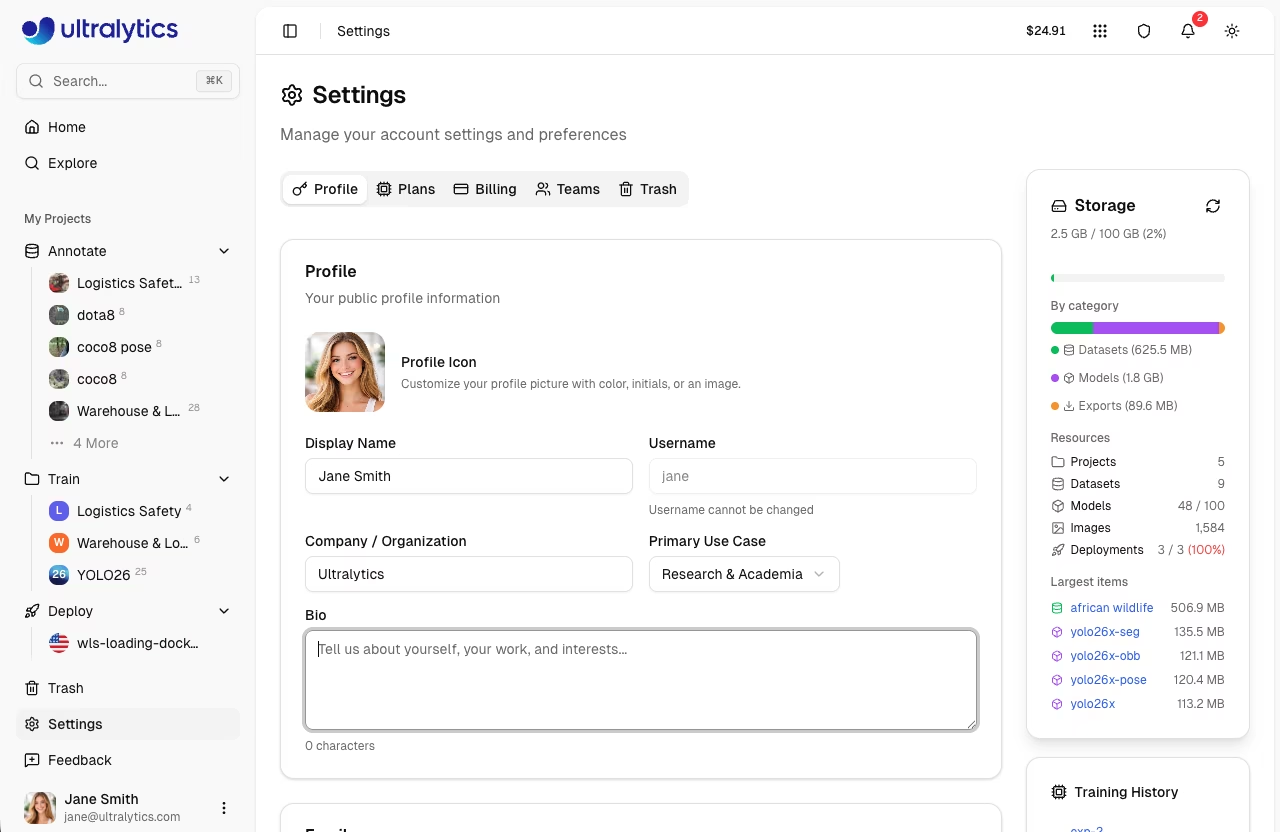
| Field | Description |
|---|---|
| Display Name | Your public name |
| Username | Unique identifier (set at signup) |
| Company | Company or organization name |
| Use Case | Primary application (select from list) |
| Bio | Short description (minimum 10 characters) |
| Profile Icon | Avatar with color, initials, or image |
Username Rules
- 4-32 characters
- Lowercase letters, numbers, hyphens
- Cannot start/end with hyphen
- Must be unique
!!! note "Username is Permanent"
Your username is set during onboarding and cannot be changed. It appears in all your public URLs (e.g., `platform.ultralytics.com/username`).
Use Case Options
| Use Case | Description |
|---|---|
| Manufacturing & QC | Quality control workflows |
| Retail & Inventory | Retail and inventory tasks |
| Security & Surveillance | Security monitoring |
| Healthcare & Medical | Medical imaging |
| Automotive & Robotics | Self-driving and robotics |
| Agriculture | Agricultural monitoring |
| Research & Academia | Academic research |
| Personal Project | Personal or hobby projects |
Edit Profile
- Go to Settings > Profile
- Update fields (display name, company, use case, bio)
- Click Save Changes
Social Links
Connect your professional profiles:
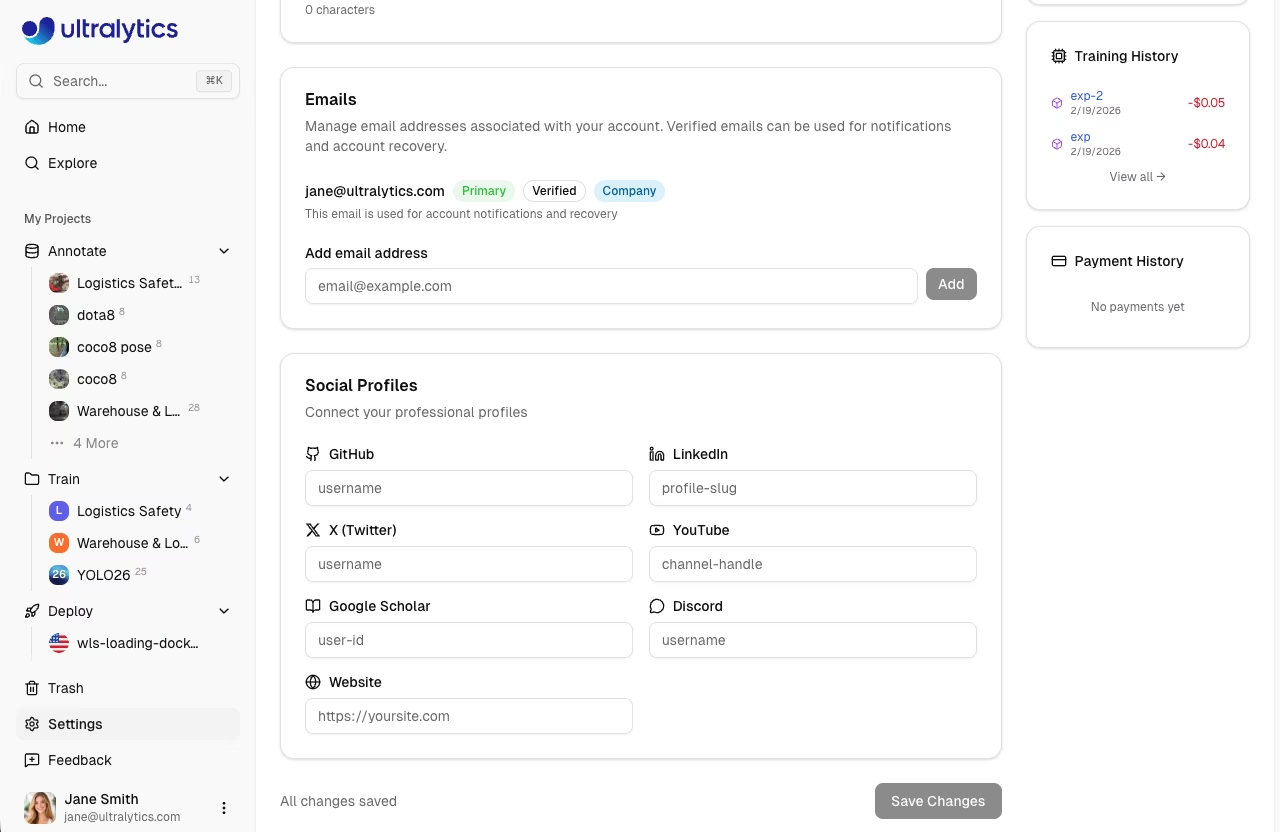
| Platform | Format |
|---|---|
| GitHub | username |
| profile-slug | |
| X (Twitter) | username |
| YouTube | channel-handle |
| Bilibili | user-id |
| Google Scholar | user-id |
| Discord | username |
| username | |
| Website | https://yoursite.com |
Social links appear on your public profile page.
Emails
Manage email addresses linked to your account in the Profile tab:
| Action | Description |
|---|---|
| Add Email | Add a new email address to your account |
| Remove | Remove a non-primary email address |
| Verify | Send a verification email to confirm ownership |
| Set as Primary | Set a verified email as your primary address |
!!! note "Primary Email"
Your primary email is used for notifications and account recovery. Only verified emails can be set as primary.
API Keys
API keys are managed directly on the Profile tab. See API Keys for full documentation.
Data Region
View your data region on the Profile tab:
| Region | Location | Best For |
|---|---|---|
| US | United States | Americas users |
| EU | Europe | European users, GDPR compliance |
| AP | Asia Pacific | Asia-Pacific users |
!!! note "Region is Permanent"
Data region is selected during signup and cannot be changed. All your data stays in this region.
Storage Usage
Monitor your storage consumption on the Profile tab:
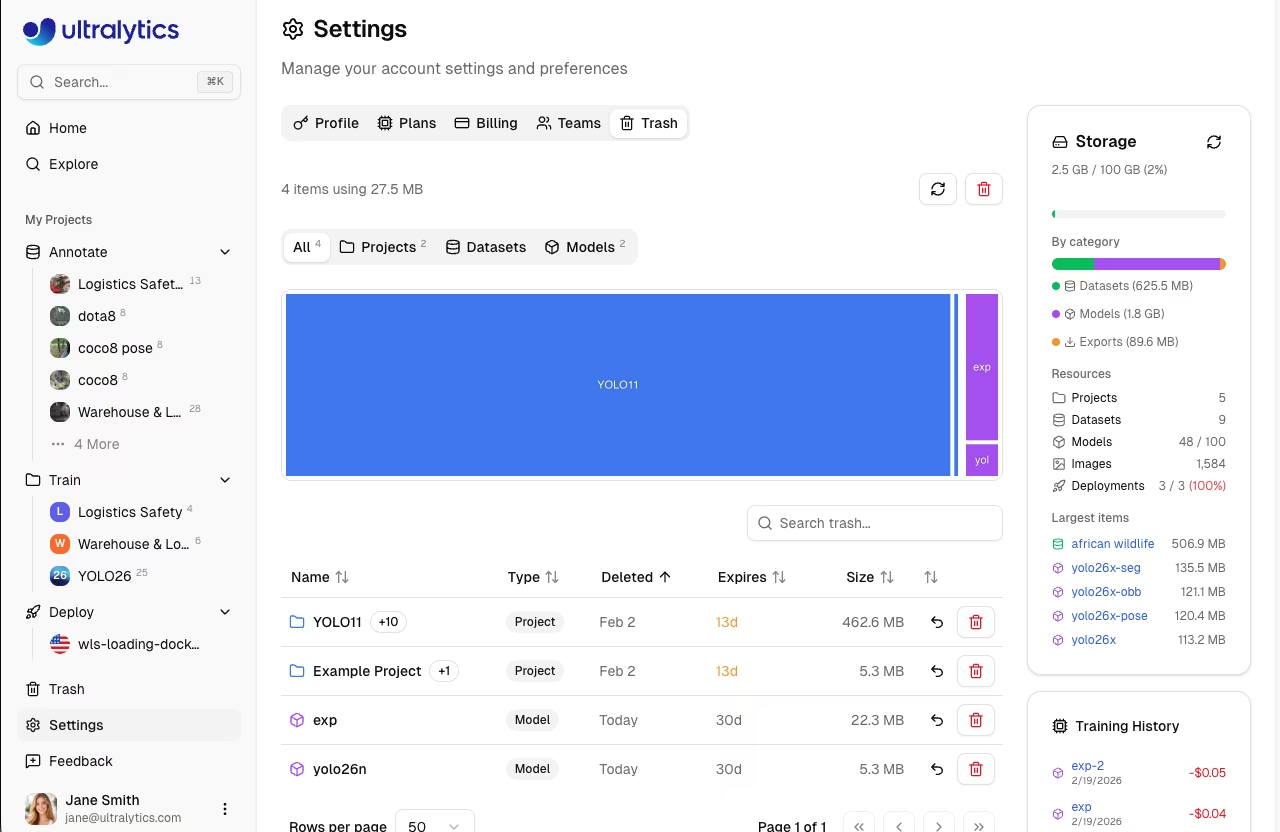
| Type | Description |
|---|---|
| Datasets | Image and label storage |
| Models | Checkpoint storage |
| Exports | Exported model formats |
Storage Limits
| Plan | Limit |
|---|---|
| Free | 100 GB |
| Pro | 500 GB |
| Enterprise | Unlimited |
Reduce Storage
To free up storage:
- Delete unused datasets
- Remove old model checkpoints
- Delete exported formats
- Empty trash (
Settings > Trash)
Security
The Profile tab includes a Security card at the bottom:
- Two-Factor Authentication: Coming soon. Currently handled by your OAuth provider (Google, GitHub)
- Connected Accounts: Shows your linked OAuth provider (e.g., Google)
GDPR Compliance
Ultralytics Platform supports GDPR rights:
Data Export
Download all your data:
- Go to Settings > Profile
- Scroll to the bottom section
- Click Export Data
- Receive download link via email
Export includes:
- Profile information
- Dataset metadata
- Model metadata
- Training history
- API key metadata (not secrets)
Account Deletion
Permanently delete your account:
- Go to Settings > Profile
- Scroll to the bottom section
- Click Delete Account
- Confirm deletion
!!! warning "Irreversible Action"
Account deletion is permanent. All data is removed within 30 days per GDPR requirements.
What's Deleted
- All projects and trained models
- All datasets and images
- All API keys and credentials
- All activity history
- Credit balance
What's Retained
- Anonymized analytics
- Server logs (90 days)
- Legal compliance records
Plans Tab
Compare available plans. See Billing for detailed plan information and pricing.
Billing Tab
Manage credits, payment methods, and view transaction history. See Billing for full documentation.
Teams Tab
Manage workspace members, roles, and invitations. Teams are available on Pro and Enterprise plans.
Team Overview
The Teams tab displays:
- Workspace name and avatar
- Seat usage summary (used / available)
- Member list with roles
- Pending invitations
Member Roles
| Role | Permissions |
|---|---|
| Owner | Full control, transfer ownership, delete workspace |
| Admin | Manage members, billing, settings, content |
| Editor | Create and manage projects, datasets, models, API keys |
| Viewer | Read-only access to workspace resources |
!!! note "Role Availability"
Owner, Admin, Editor, and Viewer roles are available on all team plans (Pro and Enterprise).
Invite Members
- Go to Settings > Teams
- Click Invite
- Enter email address
- Select role
- Send invitation
The invitee receives an email and can accept the invitation to join the workspace. Invitations expire after 7 days. Inviting members requires the Admin role or higher.
Manage Members
Owners and admins can manage the team:
- Change roles: Click the role dropdown next to a member (only the owner can assign/remove the admin role)
- Remove members: Click the menu and select Remove
- Cancel invites: Cancel pending invitations that haven't been accepted
- Resend invites: Resend invitation emails
- Transfer ownership: Transfer workspace ownership to another member (Owner only)
Trash Tab
Manage deleted items. See Trash for full documentation.
FAQ
How do I change my email?
Manage your email addresses directly on the platform:
- Go to Settings > Profile
- Scroll to the Emails section
- Add a new email, verify it, and set it as primary
Can I have multiple accounts?
You can create accounts in different regions, but:
- Each needs a unique email
- Data doesn't transfer between accounts
- Billing is separate
How do I change my password?
If you signed up with email and password, use the password reset flow on the sign-in page. If you signed up with an OAuth provider, manage your password through that provider:
- Google: accounts.google.com
- GitHub: github.com/settings/security
Is two-factor authentication available?
2FA is handled by your OAuth provider. Enable 2FA in:
- Google Account settings
- GitHub Security settings
How long until deleted data is removed?
| Type | Timeline |
|---|---|
| Trash items | 30 days |
| Account deletion | Up to 30 days |
| Backups | 90 days |