
7.1 KiB
Executable File
comments, description, keywords
| comments | description | keywords |
|---|---|---|
| true | Learn how to recover deleted projects, datasets, and models from Trash on Ultralytics Platform with the 30-day soft delete policy. | Ultralytics Platform, trash, restore, soft delete, recover, deleted items, data recovery |
Trash and Restore
Ultralytics Platform implements a 30-day soft delete policy, allowing you to recover accidentally deleted projects, datasets, and models. Deleted items are moved to Trash where they can be restored before permanent deletion.
Soft Delete Policy
When you delete a resource on the platform:
- Immediate: Item moves to Trash (not permanently deleted)
- 30 Days: Item remains recoverable in Trash
- After 30 Days: Item is permanently deleted automatically
!!! success "Recovery Window"
You have 30 days to restore any deleted item. After this period, the item and all associated data are permanently removed and cannot be recovered.
Accessing Trash
Navigate to your Trash:
- Go to Settings and click the Trash tab
- Or navigate directly to
/trash(redirects toSettings > Trash)
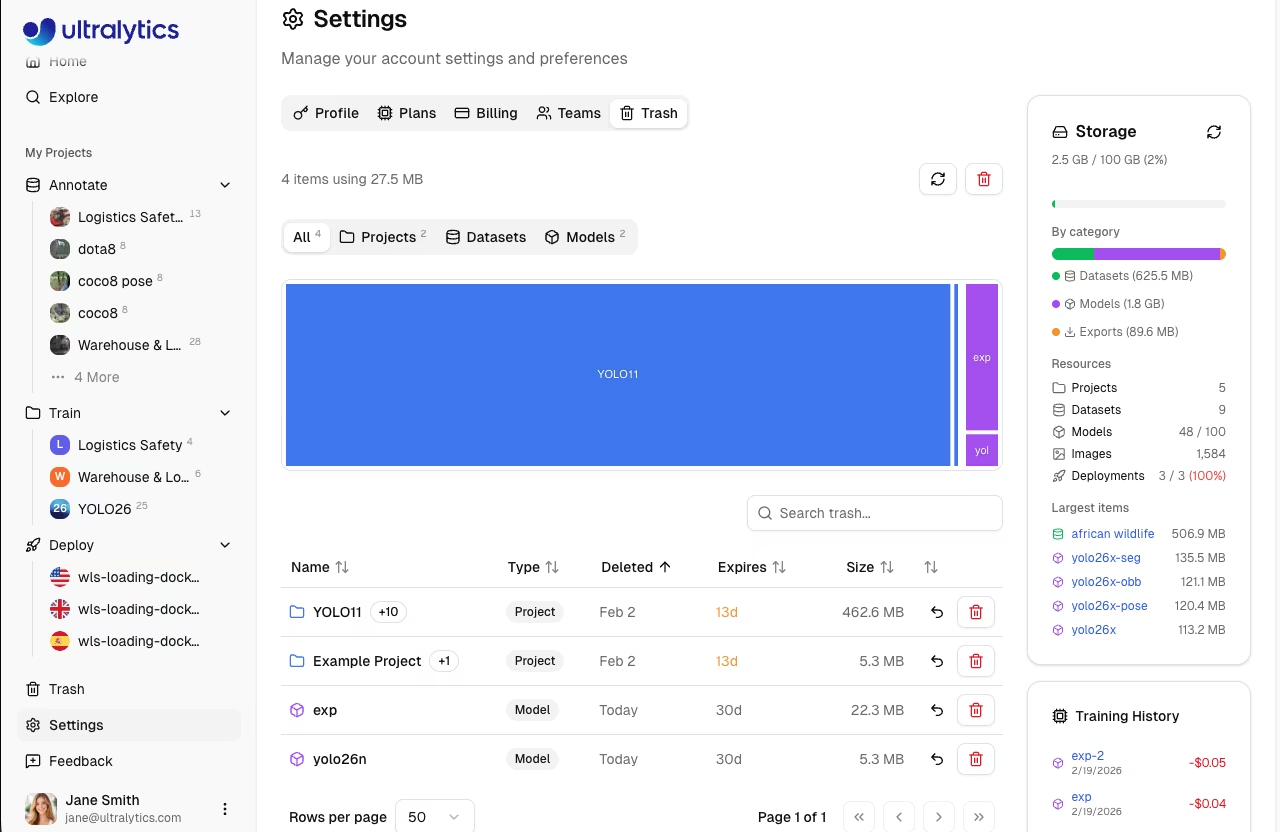
Trash Contents
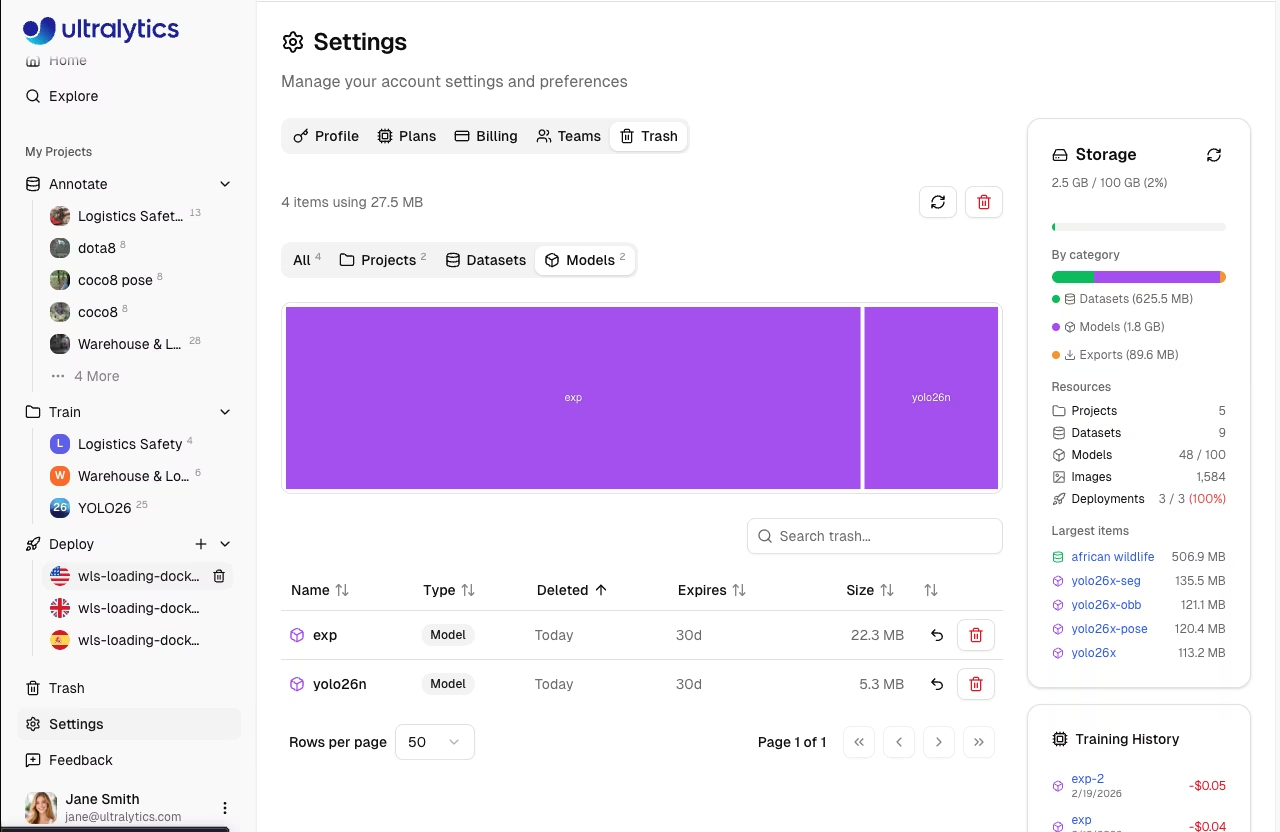
The Trash shows all soft-deleted resources with filter options:
| Filter | Shows |
|---|---|
| All | All trashed items |
| Projects | Trashed projects |
| Datasets | Trashed datasets |
| Models | Trashed models |
Viewing Trash Items
Each item in Trash displays:
| Field | Description |
|---|---|
| Name | Original resource name |
| Type | Project, Dataset, or Model (color-coded) |
| Deleted | Date and time of deletion |
| Days Remaining | Time until permanent deletion |
| Size | Storage used by the item |
| Cascaded Items | Number of child items included |
| Parent Project | Parent project (for models) |
Cascade Behavior
When deleting a parent resource, child resources are also moved to Trash:
| Resource Type | What's Included When Deleted |
|---|---|
| Projects | Project + all models inside |
| Datasets | Dataset + all images and annotations |
| Models | Model weights + training history + exports |
Storage Treemap
The Trash tab includes a storage visualization (treemap) showing the relative size of trashed items, color-coded by type:
- Blue: Projects
- Green: Datasets
- Purple: Models
Restoring Items
Recover a deleted item:
- Navigate to Settings > Trash
- Find the item you want to restore
- Click the Restore button (undo icon)
- Confirm restoration
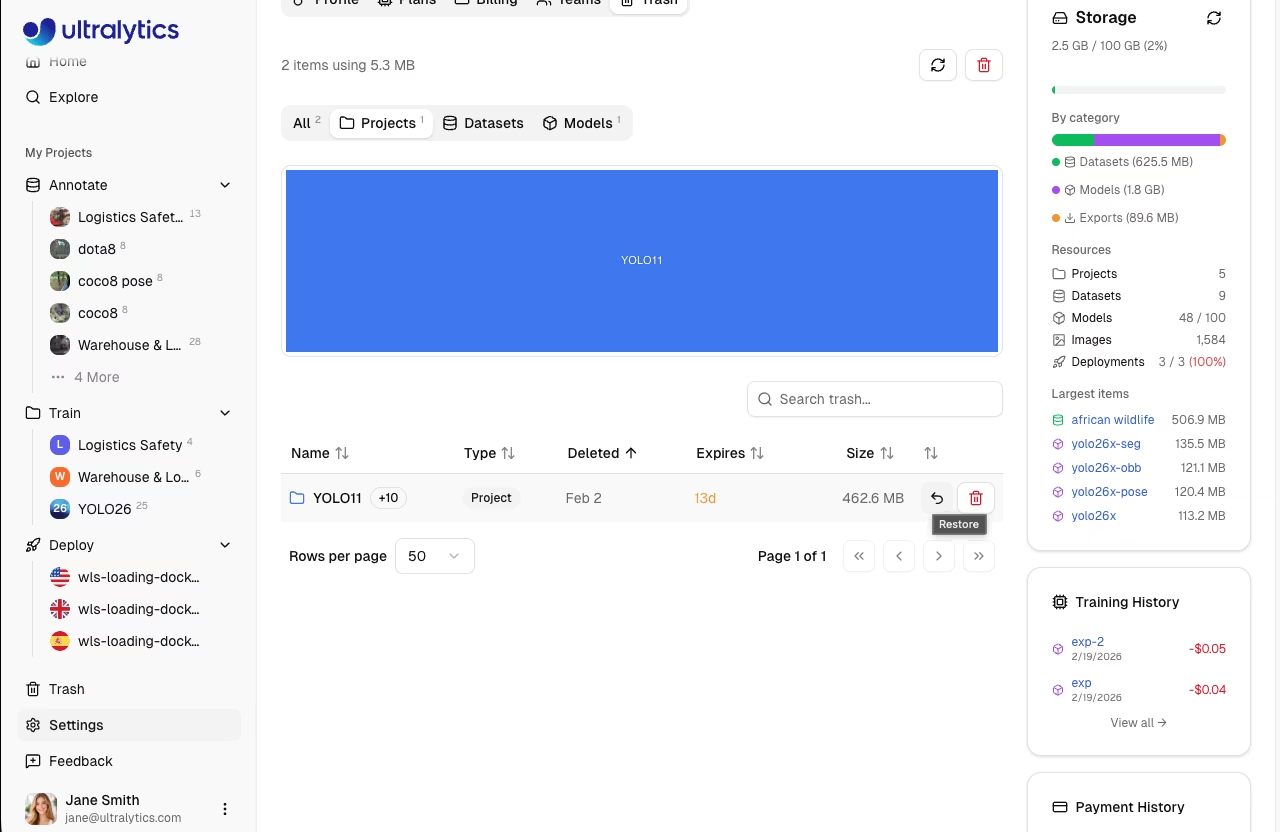
The item returns to its original location with all data intact.
Restore Behavior
| Resource | Restore Behavior |
|---|---|
| Project | Restores project and all contained models |
| Dataset | Restores dataset with all images and annotations |
| Model | Restores model to original project if the project is active |
!!! warning "Parent Project Required"
Restoring a model fails if its parent project is in Trash. You'll see the error: "Cannot restore model while its parent project is in trash. Restore the project first." Always restore the parent project before restoring individual models.
Permanent Deletion
Automatic Deletion
Items in Trash are automatically and permanently deleted after 30 days. A daily cleanup job runs at 3:00 AM UTC to remove expired items.
Empty Trash
Permanently delete all items immediately:
- Navigate to Settings > Trash
- Click Empty Trash
- Confirm the action
!!! warning "Irreversible Action"
Emptying Trash permanently deletes all items immediately. This action cannot be undone and all data will be lost.
Delete Single Item Permanently
To permanently delete one item without waiting:
- Find the item in Trash
- Click the Delete button
- Confirm deletion
Storage and Trash
Items in Trash still count toward your storage quota:
| Scenario | Storage Impact |
|---|---|
| Delete item | Storage remains allocated |
| Restore item | No change (was still counting) |
| Permanent deletion | Storage freed |
| 30-day auto-deletion | Storage freed automatically |
!!! tip "Free Up Storage"
If you're running low on storage, empty Trash or permanently delete specific items to immediately reclaim space. Check your storage usage in [Settings](settings.md#storage-usage) and see [Billing](billing.md#plans) for plan storage limits.
API Access
Access trash programmatically via the REST API:
=== "List Trash"
```bash
curl -H "Authorization: Bearer YOUR_API_KEY" \
  https://platform.ultralytics.com/api/trash
```
=== "Restore Item"
```bash
curl -X POST -H "Authorization: Bearer YOUR_API_KEY" \
  -H "Content-Type: application/json" \
  -d '{"id": "item_abc123", "type": "dataset"}' \
  https://platform.ultralytics.com/api/trash
```
=== "Empty Trash"
```bash
curl -X DELETE -H "Authorization: Bearer YOUR_API_KEY" \
  https://platform.ultralytics.com/api/trash/empty
```
FAQ
Can I restore an item after 30 days?
No. After 30 days, items are permanently deleted and cannot be recovered. Make sure to restore important items before the expiration date shown in Trash.
What happens when I delete a project with models?
Both the project and all models inside it move to Trash together. Restoring the project restores all its models. You can also restore individual models separately.
Do items in Trash count toward storage?
Yes, items in Trash continue to use storage quota. To free up space, permanently delete items or empty Trash.
Can I recover a model if its project was permanently deleted?
No. If a project is permanently deleted, all models that were inside it are also permanently deleted. Always restore items before the 30-day window expires.
How do I know when an item will be permanently deleted?
Each item in Trash shows a "Days Remaining" counter indicating how many days until automatic permanent deletion occurs.