 Chengfang Lu
e72bc061c5
Chengfang Lu
e72bc061c5
Major changes:
- New frontend (platform/web/): Vite + React 18 + TypeScript + Tailwind
- 4-module navigation: 数据送标 / 模型管理 / 车队管理 / 系统管理
- Data catalog with charts (DMS/ADAS/Lane 3-tab view)
- Quality review workflow (标注质检): Good/Fine/Bad scoring with auto-advance
- Audit enhancements: batch operations, rejection categories, Feishu notifications
- Operation audit log (操作日志)
- World model simulation studio (仿真工坊)
- Dataset version management with snapshots and diff
- ADAS 7-class dataset integration (138K images organized + compressed)
- User management with Feishu integration and pagination
- CRUD/search/filter on all pages, card layout redesign
- PIL-optimized image overlay rendering
- Auto-snapshot on build, in_review workflow stage
- Removed embedded algorithm code (now in workspace)
8.7 KiB
comments, description, keywords
| comments | description | keywords |
|---|---|---|
| true | Discover how TrackZone leverages Ultralytics YOLO26 to precisely track objects within specific zones, enabling real-time insights for crowd analysis, surveillance, and targeted monitoring. | TrackZone, object tracking, YOLO26, Ultralytics, real-time object detection, AI, deep learning, crowd analysis, surveillance, zone-based tracking, resource optimization |
TrackZone using Ultralytics YOLO26

What is TrackZone?
TrackZone specializes in monitoring objects within designated areas of a frame instead of the whole frame. Built on Ultralytics YOLO26, it integrates object detection and tracking specifically within zones for videos and live camera feeds. YOLO26's advanced algorithms and deep learning technologies make it a perfect choice for real-time use cases, offering precise and efficient object tracking in applications like crowd monitoring and surveillance.
Watch: How to Track Objects in Region using Ultralytics YOLO26 | TrackZone 🚀
Advantages of Object Tracking in Zones (TrackZone)
- Targeted Analysis: Tracking objects within specific zones allows for more focused insights, enabling precise monitoring and analysis of areas of interest, such as entry points or restricted zones.
- Improved Efficiency: By narrowing the tracking scope to defined zones, TrackZone reduces computational overhead, ensuring faster processing and optimal performance.
- Enhanced Security: Zonal tracking improves surveillance by monitoring critical areas, aiding in the early detection of unusual activity or security breaches.
- Scalable Solutions: The ability to focus on specific zones makes TrackZone adaptable to various scenarios, from retail spaces to industrial settings, ensuring seamless integration and scalability.
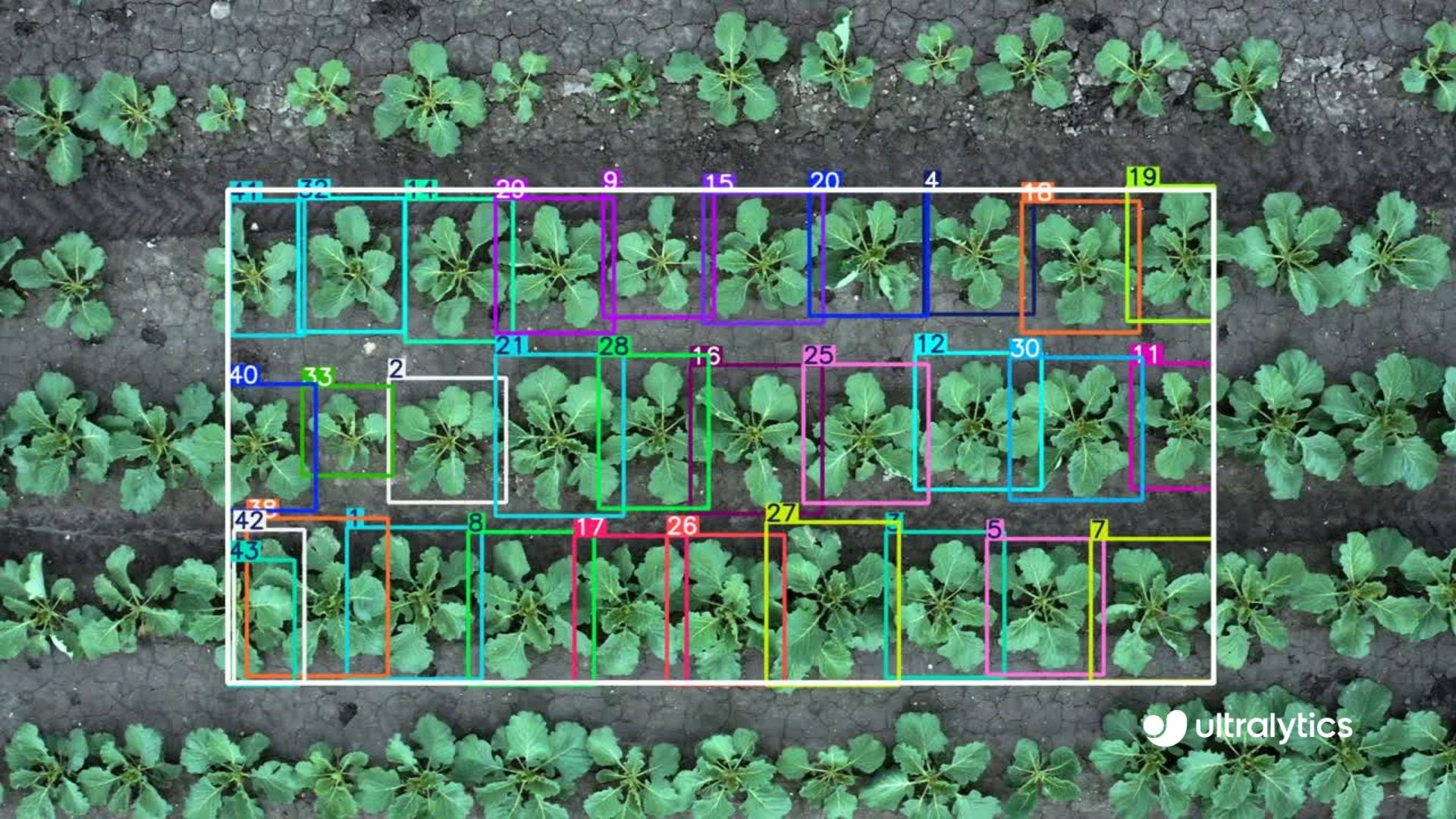
Real World Applications
| Agriculture | Transportation |
|---|---|
 |
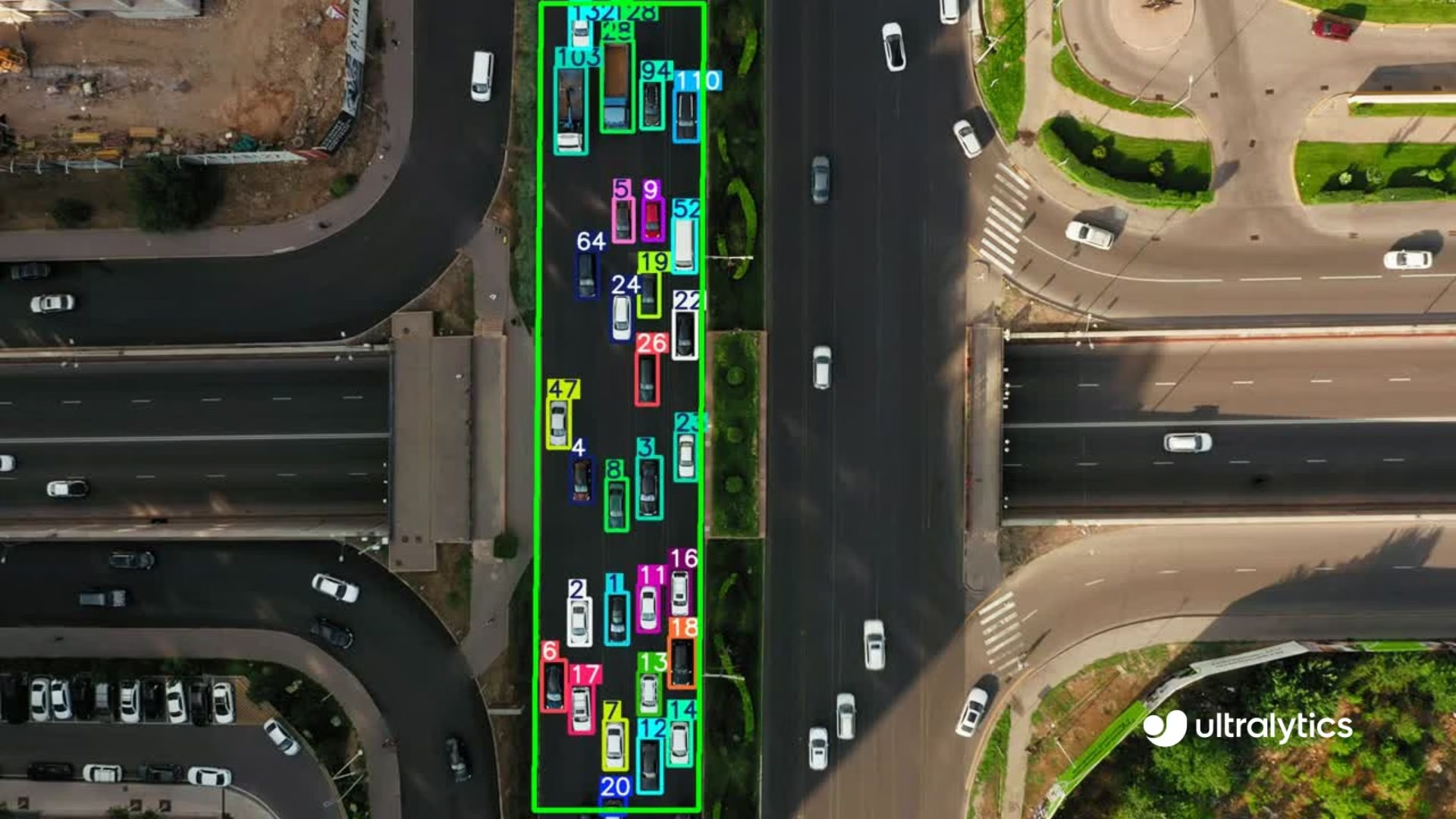 |
| Plants Tracking in Field Using Ultralytics YOLO26 | Vehicles Tracking on Road using Ultralytics YOLO26 |
!!! example "TrackZone using Ultralytics YOLO"
=== "CLI"

    ```bash
    # Run a trackzone example
    yolo solutions trackzone show=True

    # Pass a source video
    yolo solutions trackzone source="path/to/video.mp4" show=True

    # Pass region coordinates
    yolo solutions trackzone show=True region="[(150, 150), (1130, 150), (1130, 570), (150, 570)]"
    ```

    TrackZone relies on the `region` list to know which part of the frame to monitor. Define the polygon to match the physical zone you care about (doors, gates, etc.), and keep `show=True` enabled while configuring so you can verify the overlay aligns with the video feed.

=== "Python"

    ```python
    import cv2

    from ultralytics import solutions

    cap = cv2.VideoCapture("path/to/video.mp4")
    assert cap.isOpened(), "Error reading video file"

    # Define region points
    region_points = [(150, 150), (1130, 150), (1130, 570), (150, 570)]

    # Video writer
    w, h, fps = (int(cap.get(x)) for x in (cv2.CAP_PROP_FRAME_WIDTH, cv2.CAP_PROP_FRAME_HEIGHT, cv2.CAP_PROP_FPS))
    video_writer = cv2.VideoWriter("trackzone_output.avi", cv2.VideoWriter_fourcc(*"mp4v"), fps, (w, h))

    # Init trackzone (object tracking in zones, not complete frame)
    trackzone = solutions.TrackZone(
        show=True,  # display the output
        region=region_points,  # pass region points
        model="yolo26n.pt",  # use any model that Ultralytics supports, e.g., YOLOv9, YOLOv10
        # line_width=2,  # adjust the line width for bounding boxes and text display
    )

    # Process video
    while cap.isOpened():
        success, im0 = cap.read()
        if not success:
            print("Video frame is empty or processing is complete.")
            break

        results = trackzone(im0)

        # print(results)  # access the output

        video_writer.write(results.plot_im)  # write the video file

    cap.release()
    video_writer.release()
    cv2.destroyAllWindows()  # destroy all opened windows
    ```
TrackZone Arguments
Here's a table with the TrackZone arguments:
{% from "macros/solutions-args.md" import param_table %} {{ param_table(["model", "region"]) }}
The TrackZone solution includes support for track parameters:
{% from "macros/track-args.md" import param_table %} {{ param_table(["tracker", "conf", "iou", "classes", "verbose", "device"]) }}
Moreover, the following visualization options are available:
{% from "macros/visualization-args.md" import param_table %} {{ param_table(["show", "line_width", "show_conf", "show_labels"]) }}
FAQ
How do I track objects in a specific area or zone of a video frame using Ultralytics YOLO26?
Tracking objects in a defined area or zone of a video frame is straightforward with Ultralytics YOLO26. Simply use the command provided below to initiate tracking. This approach ensures efficient analysis and accurate results, making it ideal for applications like surveillance, crowd management, or any scenario requiring zonal tracking.
yolo solutions trackzone source="path/to/video.mp4" show=True
How can I use TrackZone in Python with Ultralytics YOLO26?
With just a few lines of code, you can set up object tracking in specific zones, making it easy to integrate into your projects.
import cv2

from ultralytics import solutions

cap = cv2.VideoCapture("path/to/video.mp4")
assert cap.isOpened(), "Error reading video file"
w, h, fps = (int(cap.get(x)) for x in (cv2.CAP_PROP_FRAME_WIDTH, cv2.CAP_PROP_FRAME_HEIGHT, cv2.CAP_PROP_FPS))

# Define region points
region_points = [(150, 150), (1130, 150), (1130, 570), (150, 570)]

# Video writer
video_writer = cv2.VideoWriter("object_counting_output.avi", cv2.VideoWriter_fourcc(*"mp4v"), fps, (w, h))

# Init trackzone (object tracking in zones, not complete frame)
trackzone = solutions.TrackZone(
    show=True,  # display the output
    region=region_points,  # pass region points
    model="yolo26n.pt",
)

# Process video
while cap.isOpened():
    success, im0 = cap.read()
    if not success:
        print("Video frame is empty or video processing has been successfully completed.")
        break
    results = trackzone(im0)
    video_writer.write(results.plot_im)

cap.release()
video_writer.release()
cv2.destroyAllWindows()
How do I configure the zone points for video processing using Ultralytics TrackZone?
Configuring zone points for video processing with Ultralytics TrackZone is simple and customizable. You can directly define and adjust the zones through a Python script, allowing precise control over the areas you want to monitor.
# Define region points
region_points = [(150, 150), (1130, 150), (1130, 570), (150, 570)]

# Initialize trackzone
trackzone = solutions.TrackZone(
    show=True,  # display the output
    region=region_points,  # pass region points
)